Pods
A pod is your own computer in the SkyDeck cloud — a full Linux machine with a real terminal, an AI agent preinstalled, and a durable workspace. You launch it from GenStudio, work in it from any browser, and leave it running while you step away. Your laptop can sleep; your pod doesn't depend on it.
Typical things people do in a pod:
- run Claude Code on a repository for hours-long coding sessions
- keep an always-on agent (like OpenClaw) working in the background
- develop and preview a web app without installing anything locally
- work on the same live terminal together with teammates — see Operate an Agent Together
Launch a pod
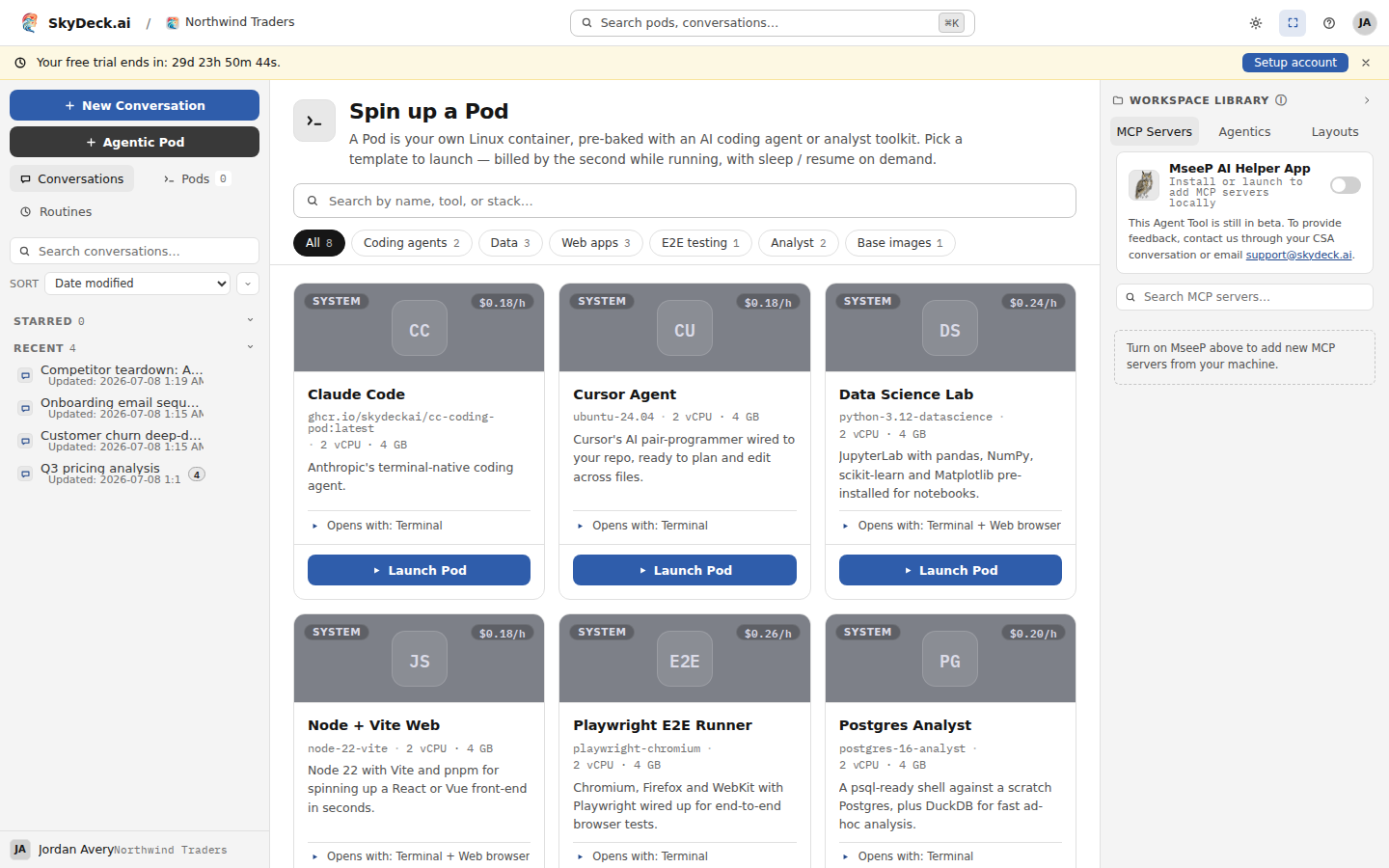
- In the GenStudio Workspace, open the pod catalog. You'll see the pods your organization has made available to you — system pods like Claude Code, plus any custom pods your admins have built.
- Pick one and launch it. The first start takes a moment while your machine is provisioned; after that, waking a sleeping pod is much faster.
- The pod opens with its configured view — a terminal, a web browser pane, or both side by side.
Info
Don't see any pods, or a launch is refused? Pod access and budgets are set by your organization's admins in the Control Center — see Pods in the Control Center. Launches can be blocked when a monthly budget or your personal cap is reached, or if you're at your concurrent pod limit.
Terminals
The terminal is a real shell on your pod (running inside tmux), not an emulation.
A pod gives you two kinds:
- The pod's main terminal — the shared one the pod opens with. Whatever runs here keeps running when you disconnect: close the browser, put your laptop to sleep, come back later and reattach — the session and its program are still going (until the pod itself sleeps). This is where a long agent run belongs. When the pod is shared, this is also the terminal everyone collaborates in.
- Extra terminal tabs — open up to 10 additional named terminals for parallel
work: tests in one, logs in another, the agent in a third. Each tab is its own shell.
These are tidied up when abandoned: a page reload or connection blip within about
45 seconds lands you back in the same shell, but once the last person viewing a
tab has been gone past that grace window, that tab's session is closed and whatever
was running in it stops. For anything that must survive without you, use the main
terminal or run it detached (
nohup ..., or your owntmux new -d ...).
Copy works — programs in the pod that copy to the clipboard (and tmux copy mode)
reach your local clipboard. For unattended, around-the-clock work, see
Run AI Agents Around the Clock.
The browser pane
If your pod runs a web service — a dev server, JupyterLab, a preview build — the browser pane shows it right next to the terminal. It reaches only the ports the pod's template exposes; you and your collaborators each get your own view of the same running app.
Sleep, resume, and what persists
A running pod bills by the hour, so pods sleep when they're not needed:
- Manual sleep / resume. Put a pod to sleep from the workspace when you're done; resume it later and pick up where you left off.
- Idle auto-sleep. By default a pod that shows no activity for a while (20 minutes, unless your admins changed it) is put to sleep automatically. Activity means someone interacting — typing in a terminal or acting on the pod from the workspace; a program quietly producing output does not by itself keep a pod awake. For unattended long runs, ask your admin to raise the auto-sleep window or turn it off (spend controls).
- What survives sleep. Everything in
/workspace— your durable volume. Your repositories are cloned there, and~/git-localpoints there. In the Claude Code pod, the agent's own state (~/.claude— its login, settings, and memory) is kept on the durable volume too, so Claude Code resumes with everything it knew. - What doesn't. Running processes stop when a pod sleeps, and files outside
/workspaceare reset from the pod's image on resume. Keep anything you care about in/workspace.
Work with the AI agent
In a Claude Code pod, run claude in a terminal to start the agent (and
claude update to update it). Because /workspace and the agent's memory persist, a
project can span days of sessions — launch, work with the agent, sleep, resume, and the
agent still has its context. Custom pods may ship other agents — OpenClaw,
Hermes, JupyterLab — or none, if your team brings its own tooling.
Share a pod with teammates
You can invite members of your organization to your pod:
- Read-write collaborators join the main terminal as full participants and can open their own terminal tabs. In the shared main terminal, one person drives at a time: the presence panel shows who currently holds the keyboard (the Driver), anyone else can click to request control, and the driver hands it over — no two people typing over each other.
- Read-only collaborators watch the shared main terminal live without a way to type — great for demos, reviews, and keeping an eye on an agent.
Everyone attached to the main terminal sees the same screen, live. See Operate an Agent Together for patterns that work well.
Warning
A read-write collaborator has your shell — with access to everything your pod can reach. Share deliberately, and prefer read-only when a teammate only needs to watch.
Connect pods with a mesh network
A mesh network lets member pods connect to each other over SSH with keys and host aliases configured automatically. See Pod mesh networks for setup, file transfers, membership changes, and troubleshooting.
Costs and limits
Pods accrue compute cost per hour while running (sleeping pods cost only storage). Your organization sets a monthly pod budget, per-member caps, and a limit on how many pods you can run at once — when a cap is reached, new launches are blocked or warned depending on your organization's policy. If a launch is refused, that's usually why; your admin can adjust the policy in the Control Center.