Pods
Pods are on-demand, isolated cloud development environments your members launch from the workspace — a full Linux machine with a real terminal, an AI coding agent (Claude Code), and your tools preinstalled. Each pod runs in its own secure sandbox, keeps running across disconnects, and persists its workspace between sessions.
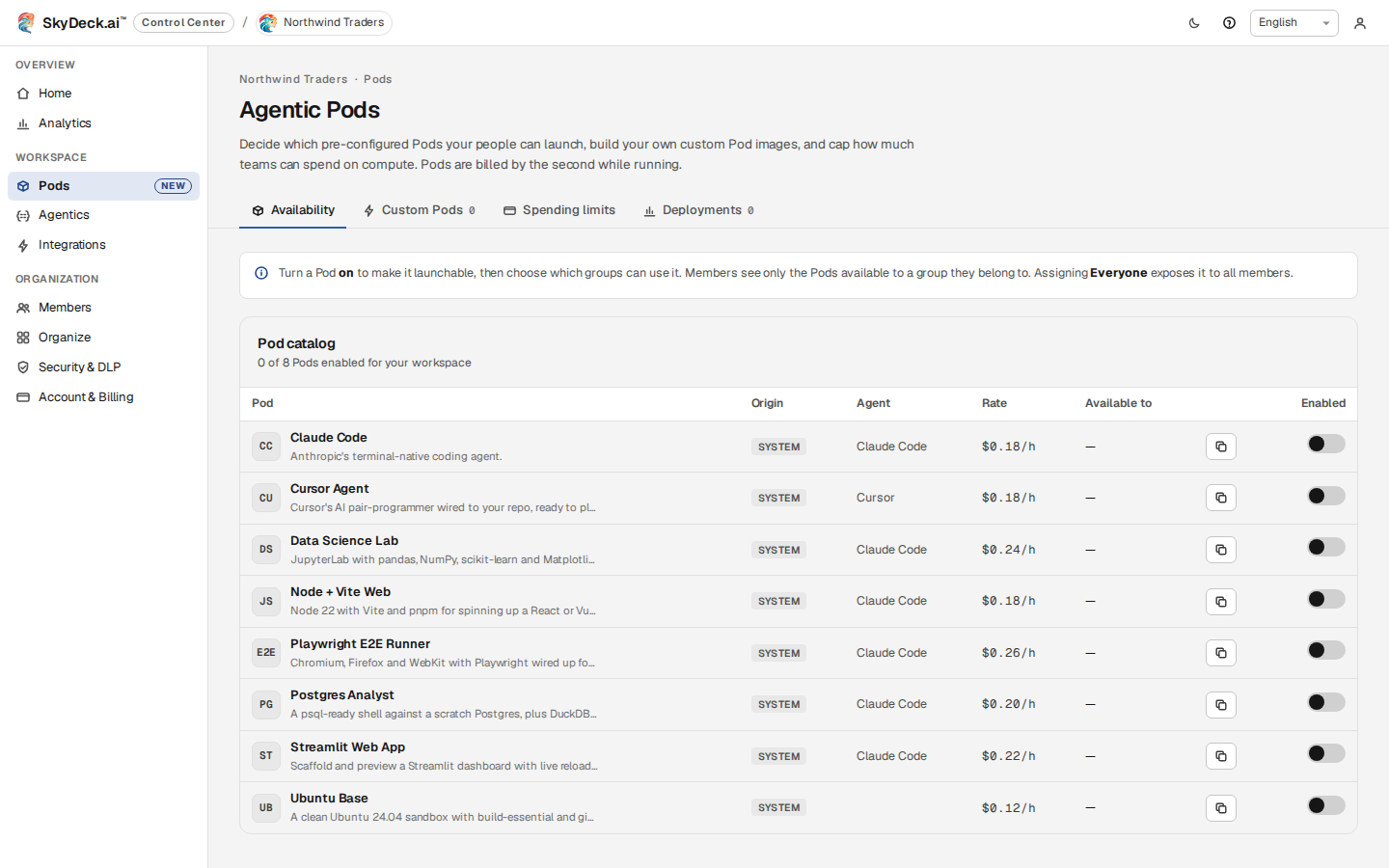
As an organization admin you decide which pods your members can launch, and you can add your own custom pods tailored to your stack.
Two kinds of pods
- System pods — provided and maintained by SkyDeck, available to every
organization. The flagship is Claude Code: a coding pod with the GitHub CLI,
Claude Code (
claude), tailscale, a persistent/workspacevolume, and a tmux terminal. You choose whether to expose system pods to your members, and to whom. - Custom pods — built by your organization (an image with your own repos, toolchains, and tools, or a SkyDeck base plus a repo to clone). Custom pods are available only within your organization and can be scoped to specific groups.
What's inside a pod
Every coding pod starts from the SkyDeck base, so it always has a working terminal:
- Ubuntu Linux with
git,tmux, and an interactive shell - the GitHub CLI (
gh) - Claude Code (
claude) — runclaudeto start the agent,claude updateto update - tailscale for secure networking
- a persistent
/workspacedirectory (a durable volume) where your repositories and work live — it survives sleep/resume and reconnects
Persistence:
/workspaceis the durable volume. A pod's configured repository is cloned into/workspace(and~/git-localpoints there), and anything you want to keep should live there. In the Claude Code pod the agent's own state —~/.claude, its login, settings, and memory — is kept on the durable volume too, so the agent survives sleep/resume. Other files (the rest of the home directory, the rest of the filesystem) are reset from the image on resume — don't rely on them for storage.
Custom pods add your project's repositories, language runtimes, database clients, and tools on top of that base.
How members use pods
From the GenStudio Workspace, a member opens the pod catalog (the pods you've made available to them), launches one, and gets a live terminal — plus a browser pane for any web service the pod runs. The pod stays alive across disconnects, and its workspace volume persists, so long-running work survives a reconnect. Members can also share a pod with other members — read-write or read-only — to operate one session together.
The member-facing guide is Pods in GenStudio; for what teams do with this, see the use cases on running agents around the clock, operating an agent together, and deploying agents to your whole team.
Who can do what
| Action | Who |
|---|---|
| Curate which pods members can launch, and to whom | Organization admins / owners |
| Create custom pods | Organization admins / owners |
| Launch the pods made available to them | Members |
Admins manage pods in the Control Center → Pods page. To build your own environment, see Create a Custom Pod.
Spend controls
Pods bill compute per hour while running (rate depends on the pod's size, plus a surcharge for a managed agent — each pod's hourly price is shown on the page) and storage only while sleeping. The Pods page carries the organization's guardrails:
- Monthly budget — the organization-wide pod budget, and the overage behavior when it (or a member's cap) is reached: Block new launches, Warn but allow, or Allow (track only). Overage affects new launches; already-running pods keep running.
- Per-member cap — a default monthly cap per member, with per-group caps to give specific groups a different limit.
- Concurrent pods per member — how many pods one member may run at once.
- Idle auto-sleep — pods with no activity for this many minutes are put to sleep automatically (default 20; terminal activity counts). Raise it — or set it to never — for teams running always-on agents, and let budgets and caps bound the spend instead.
Oversee running pods
The same page lists the organization's pod activity — month-to-date spend against
budget and every member pod — and lets an admin sleep, stop, or delete any
pod in the organization (for example, one left running over a weekend). Members keep
their /workspace data across sleep, so putting a forgotten pod to sleep is safe.