Conversations
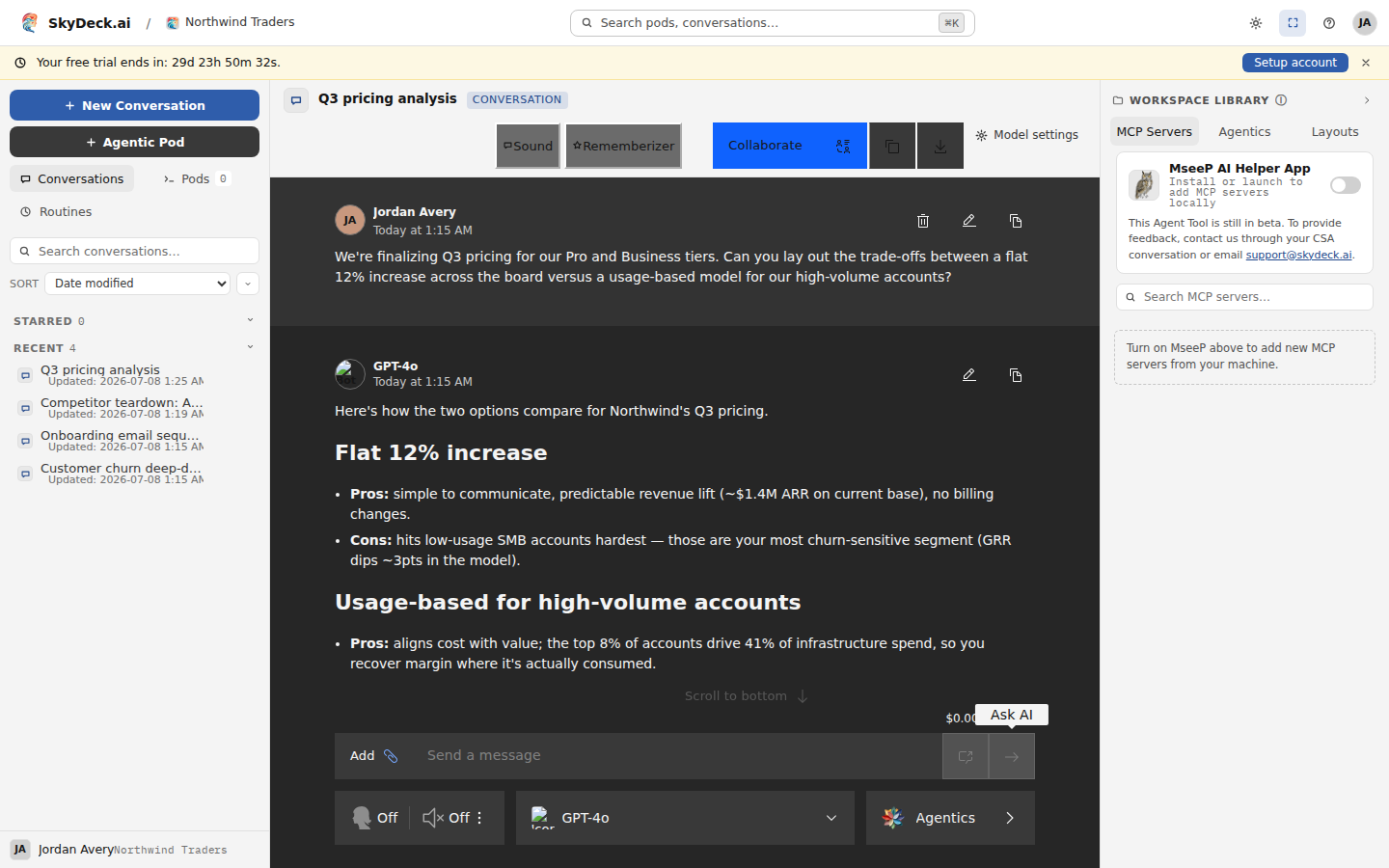
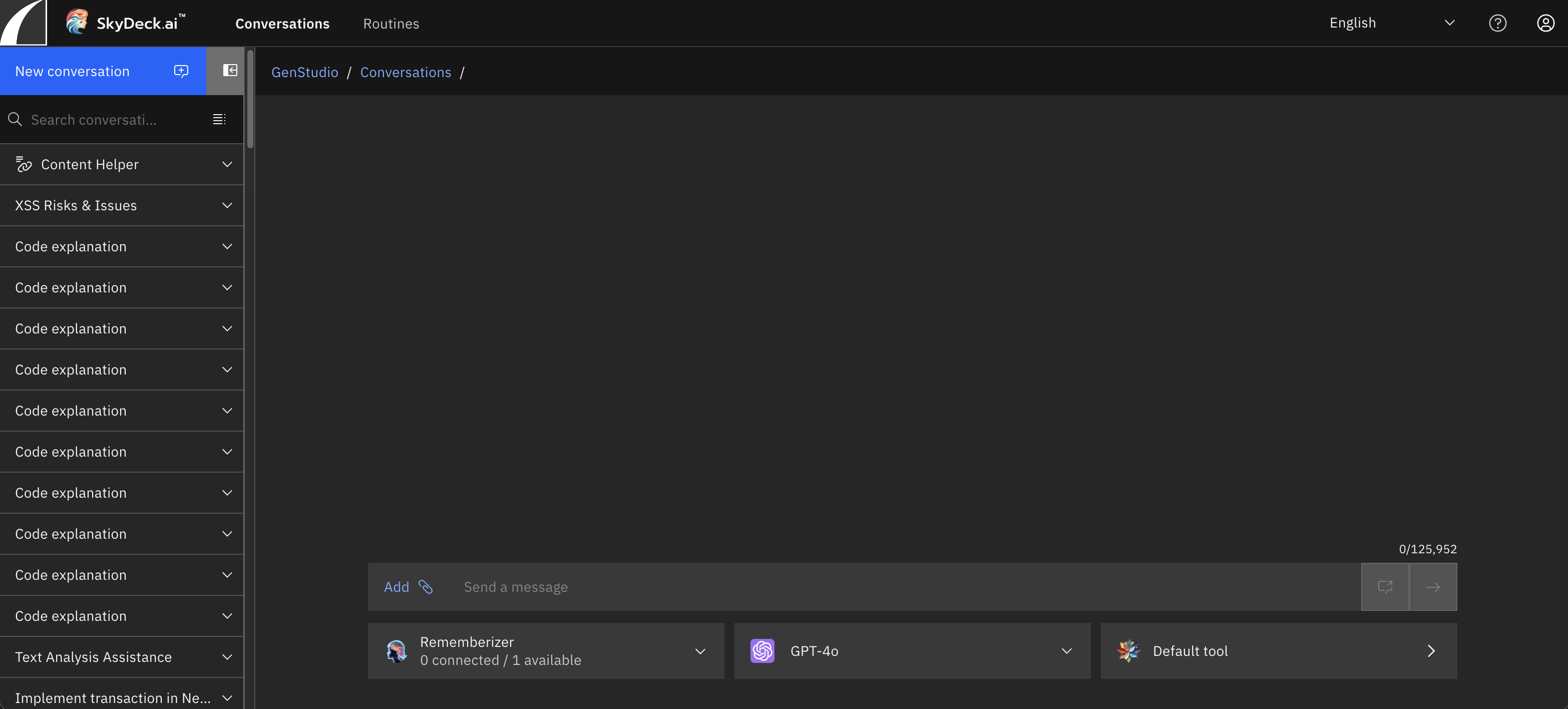
A conversation is where you chat with your organization's AI models. Start one with New Conversation in the left rail; each conversation keeps its own history and appears in the rail so you can return to it later.
You talk to the model in plain language. Type a prompt in the composer at the bottom of the screen and send it with the send button on the right of the composer, or by pressing Enter (use Shift+Enter for a line break). Clear, specific prompts get better answers — for
example, "As an expert in physics explaining to a child, explain why the sky is blue."
Choosing a model
The composer shows the model selector with the name of the model you're currently using. Click it to open a searchable list of every model your organization has connected, grouped into sections such as Recommended, Search, Images, Videos, and one section per provider. Pick a different model at any point in the conversation — later messages use whichever model is selected when you send them.
Models differ in strengths and limits. Some are tuned for careful reasoning; others accept very large context windows (roughly a book's worth of text), which lets you paste long documents into a prompt for review, background, or rewriting. Try a different model if the first reply isn't what you need.
Attaching files and web pages
- Files. Click Add next to the composer to upload documents or images and chat about them. See Document Upload for supported formats and limits.
- Web pages. Wrap any URL in double curly braces —
{{https://example.com}}— and GenStudio scrapes that page and drops its text into your prompt before it reaches the model. See Web Browsing.
Refining replies
If a reply isn't what you wanted, you have several options:
- Regenerate the reply with the button beneath an assistant message to get a fresh answer — optionally after switching models.
- Edit an earlier message and resend it; the conversation continues from your revised prompt.
- Copy any message to the clipboard with its copy button, or copy or download the whole conversation from the buttons in the conversation header.
Use the Model settings button in the header to open a side panel and tune parameters for the selected model, and the Rememberizer button to open conversation tools and connect your own knowledge (see Tools).
Working with others
Conversations aren't limited to you and the AI. Turn on collaboration to bring teammates into the
same conversation, send messages to them without invoking the AI, and @-mention people — see
Sharing and Collaboration. You can also publish a read-only
public snapshot of a conversation to share it beyond your workspace.
The Conversations Icon